How can you code a receipt in Xero from your phone?
Coding a receipt means choosing the Xero account, tax rate and tracking for it. Quenta maps each receipt to the account you used for that kind of purchase before, and asks only when it is unsure.
Quenta5 min read
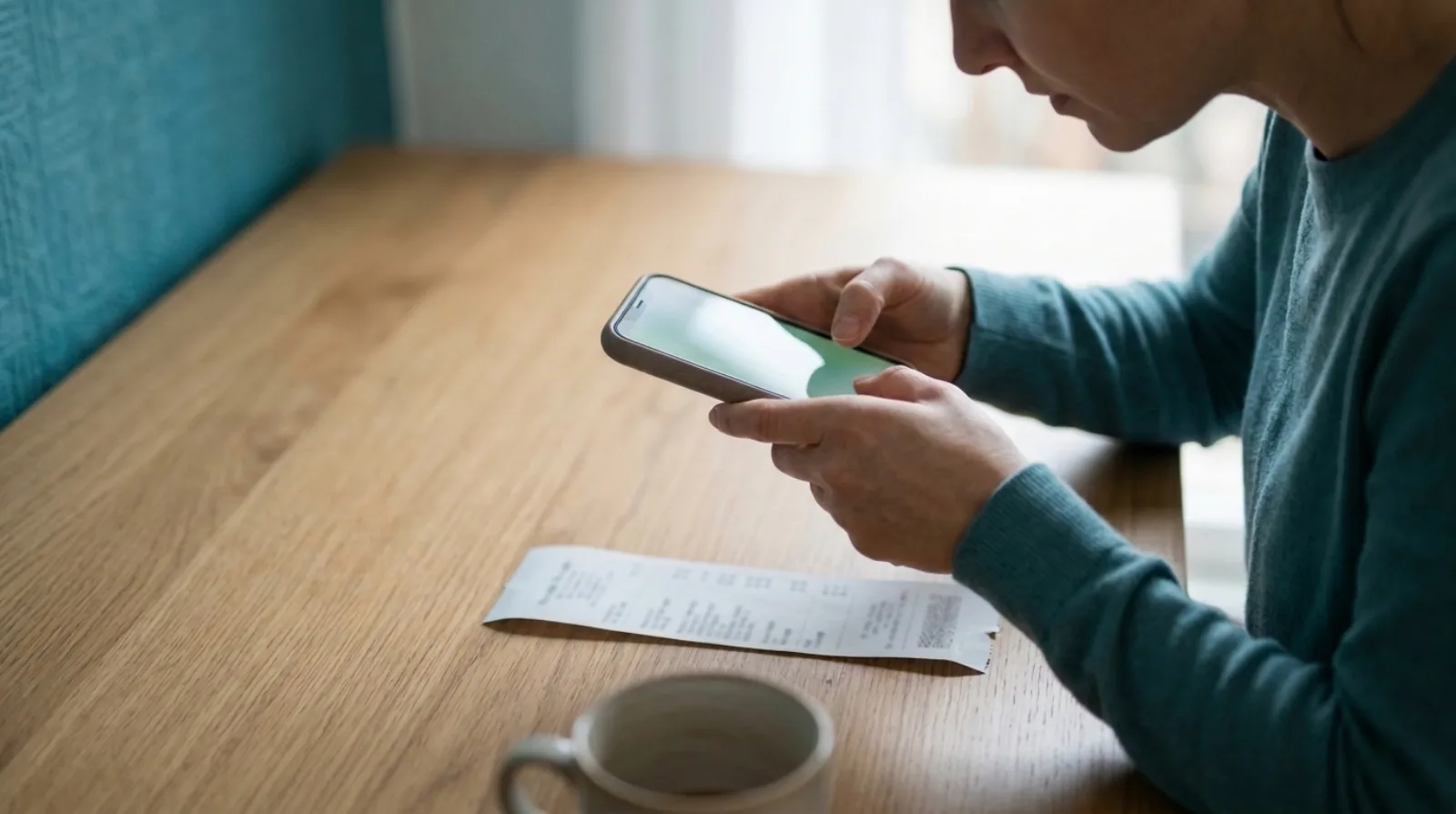
Short answer: to code a receipt in Xero from your phone, photograph it. Quenta reads the merchant, date, total and VAT, works out the category (fuel, say), and maps it to the Xero account you have already used for that category, then posts a spend-money transaction with the image attached. You only get a question when Quenta is not sure which account to use, and a choice you make is remembered by default, so the next fuel receipt needs nothing from you.
This describes a workflow, not accounting or tax advice. Which account or VAT treatment is right for a purchase is a question for your accountant.
What does "coding" a receipt mean in Xero?
Coding is deciding where a purchase lands in your books. For each receipt that means a supplier, a date, a total, an account (for example travel, software or office costs), a tax rate and, if you use them, a tracking category such as a department. Typing those into Xero by hand is the slow part of bookkeeping. The photograph is easy. The coding is the work that gets put off.
Can you do it with Xero's own phone app?
Partly. Xero's own receipt scanner lives in Xero Me, and it is built around expense claims. Xero's UK page on scanning receipts describes staff photographing a receipt in the Xero Me app, with the supplier, date and amount filled in and the image kept with the claim. That suits an employee who paid personally and needs reimbursing. Check the page for which Xero plans include claims, because the plan and the number of users change what you get.
A receipt for something the business paid for with its own card is a different job. It belongs as a spend-money transaction against a bank account, and that is what Quenta creates.
How does Quenta code a receipt from your phone?
Quenta turns a photograph of a receipt into a posted Xero transaction with the original image attached. Its help guide to how it works describes the steps:
- You photograph the receipt in the Quenta app, upload a photo or PDF, or forward an emailed receipt.
- Quenta reads the merchant, date, total, currency and VAT details, and suggests a category.
- Quenta picks the Xero account from what it already knows (see the next section).
- Quenta creates an authorised spend-money transaction in Xero and attaches the receipt.
How does Quenta choose the account?
Quenta codes the receipt for you from your earlier choices, so there is nothing to select by hand. Its order of preference, from the way it posts receipts, is:
- An account you chose for that one receipt.
- A merchant you have taught it: if you changed a merchant's category before, Quenta uses that category's account.
- Your history in Xero: if that merchant has always gone to one account, Quenta uses it.
- The account mapped to the receipt's category. For a fuel receipt, that is the account your fuel receipts went to before.
If none of these gives a clear answer, for example because the merchant has used more than one account in Xero, Quenta asks you to confirm instead of guessing.
The first time a category comes up it has no account yet, so you choose one. After that you do not have to do anything: Quenta applies the same account to the next receipt in that category.
What if Quenta is not sure?
It does not post a guess. The receipt goes to Review, pinned to the top in red, with the problem in plain words: an unclear field, a missing account, a currency to confirm. Open it, correct the highlighted value, choose the account, category or department, and select Confirm & post to Xero. The review and fix guide has the full steps.
Remember this choice is ticked by default, so a fix you make, such as sending fuel to a particular account, applies to later receipts in that category. Untick it for an unusual purchase, so a one-off does not become a rule.
Can you change what Quenta remembers?
Yes. In the app's settings, Categories & rules lets you edit categories, remove an account or department mapping, and forget a merchant rule. If you remove a mapping, that category asks again next time. The team and settings guide covers it.
Can you change the coding after it has posted?
Yes, within Xero's limits. Open a Submitted receipt and you can recode the category, account or tracking choice on the same Xero transaction. You can also move it when the amount, organisation or paid-from account is wrong, or delete it from Quenta and Xero. Xero can refuse changes to a reconciled transaction or a locked period, and Quenta shows Xero's reason instead of altering the record.
What makes the phone photo work first time?
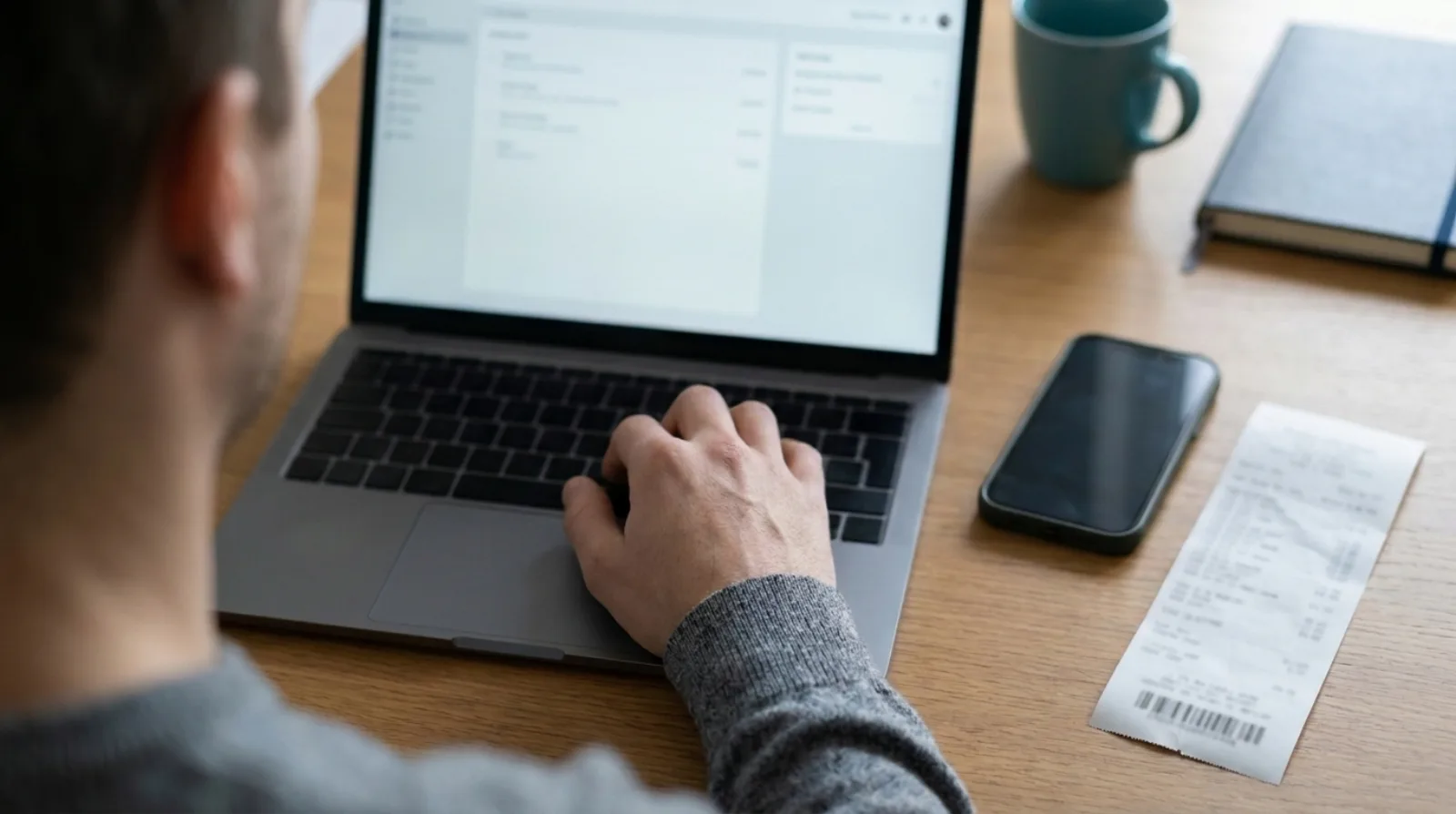
The coding starts with a readable photograph. The scan guide asks for four things:
- Lay one receipt on a flat, contrasting surface.
- Keep the whole receipt inside the corner guides, with the total and date sharp.
- Avoid glare, shadows and folds.
- For a long receipt, move back far enough to include every edge.
With no signal, the mobile app saves the capture on the phone and shows Queued offline, then uploads when it reconnects.
Quick answers
Does Quenta work with anything other than Xero? No. It posts to Xero only.
Do I have to code every receipt myself? No. Quenta maps each receipt to the account you used for that category before, and asks only when it is unsure. Your answer is remembered by default.
What does it cost? Quenta has a free plan with 10 receipts a month per organisation. Quenta Pro is £6 per user a month, tax included, with up to 350 receipts a month per workspace under fair use. Details are on the pricing page.
To get receipts into Xero coded, with the image attached and no typing, see receipt scanning for Xero.
Quenta is an independent app from We UC Ltd. Xero is a trademark of Xero Limited. Quenta is not affiliated with or endorsed by Xero.